Create a Custom Link In Bio Page In Squarespace
Why Send Your Traffic Somewhere Else?
If you’re using Linktree (or a similar tool) to share multiple links in your Instagram bio, you’re not alone. It’s a quick fix, and it does the job.
But here’s the thing—why send your audience to a third-party platform when you could keep them on your own website?
If you're building a brand, growing a business, or simply want more control over your traffic, creating your own Instagram links page inside Squarespace is a no-brainer. It keeps everything on-brand, looks more professional, and gives you full ownership over your audience’s journey.
And the best part? It’s super easy to set up. So let me walk you through how to create the perfect, on-brand alternative to Linktree for your Squarespace website!
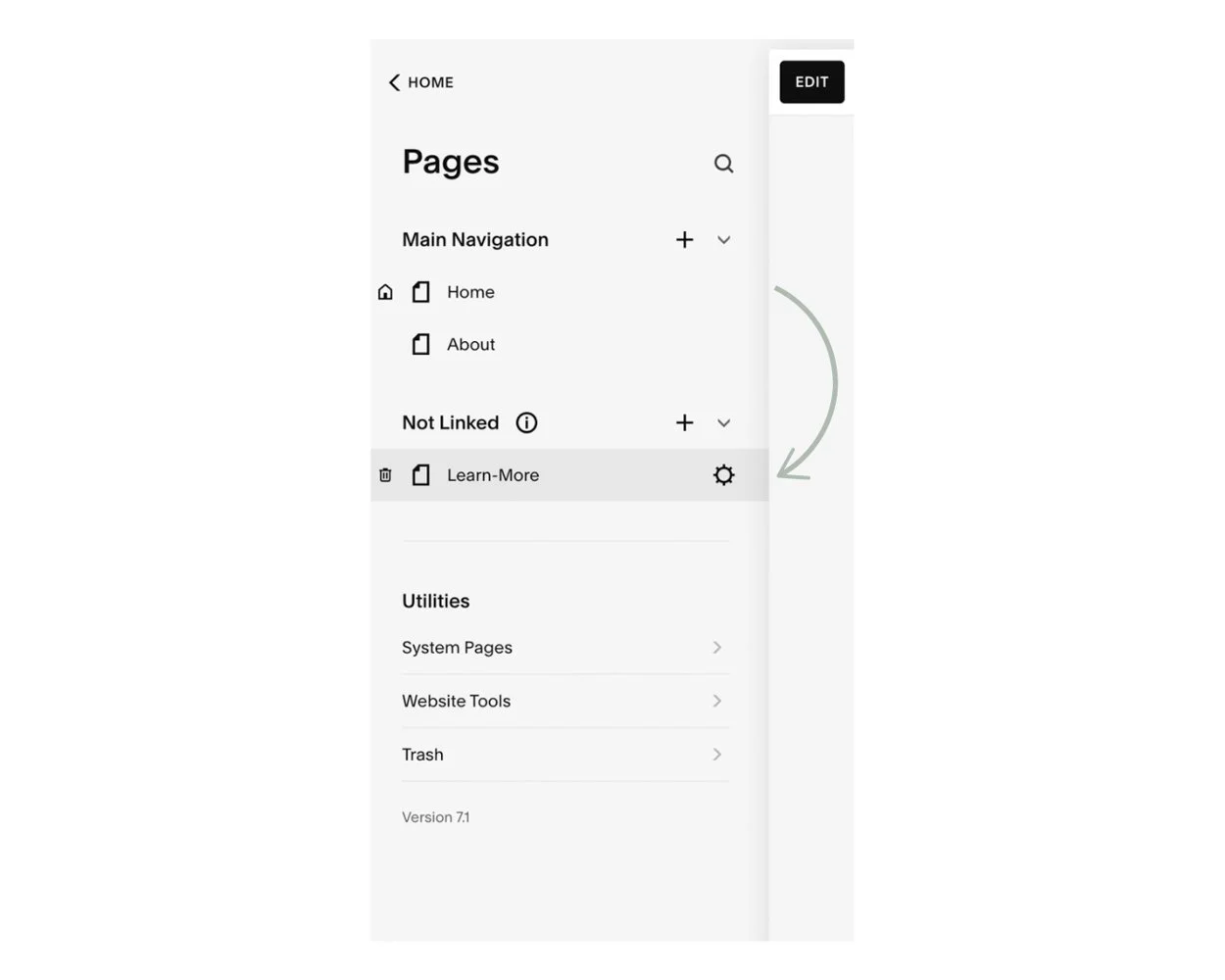
Step 1: Create a New ‘Not Linked’ Page in Squarespace
Go to Pages and click the + icon under "Not Linked."
Name it something simple like "Learn-More" or "Links"
Keep the URL clean: something like www.clarebutler.co/learn-more works best.
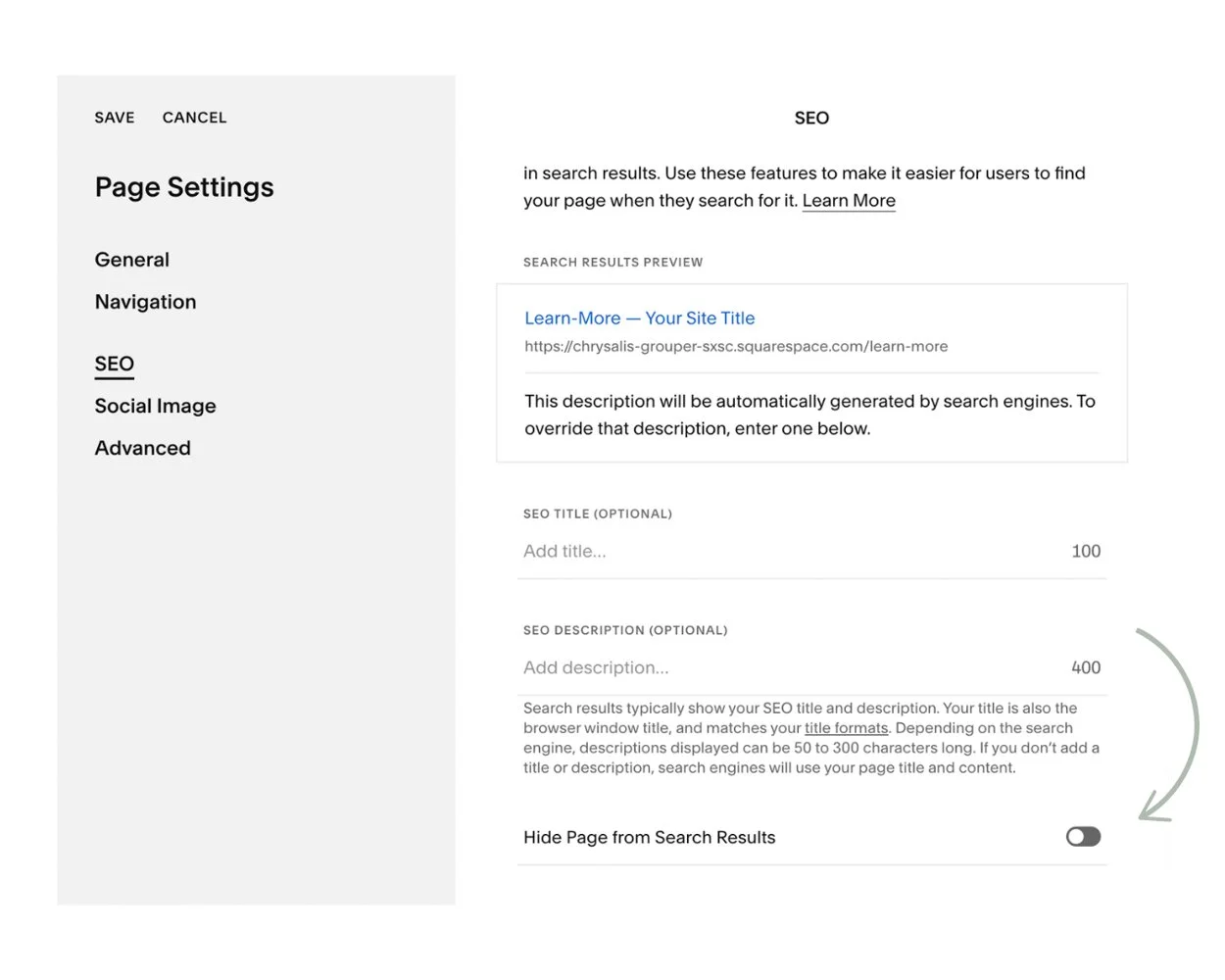
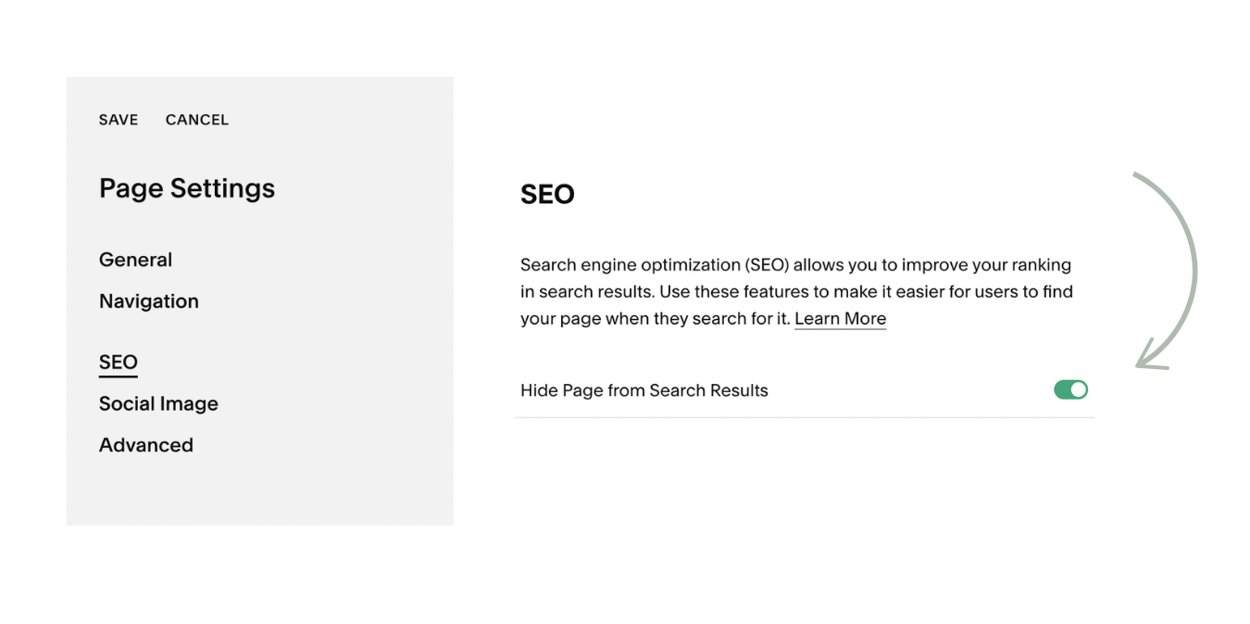
💡 Pro Tip: This page isn’t meant to be found through Google, so in the SEO settings, check "Hide Page from Search Results."
Step 2: Design Your Links Page (Make It On-Brand!)
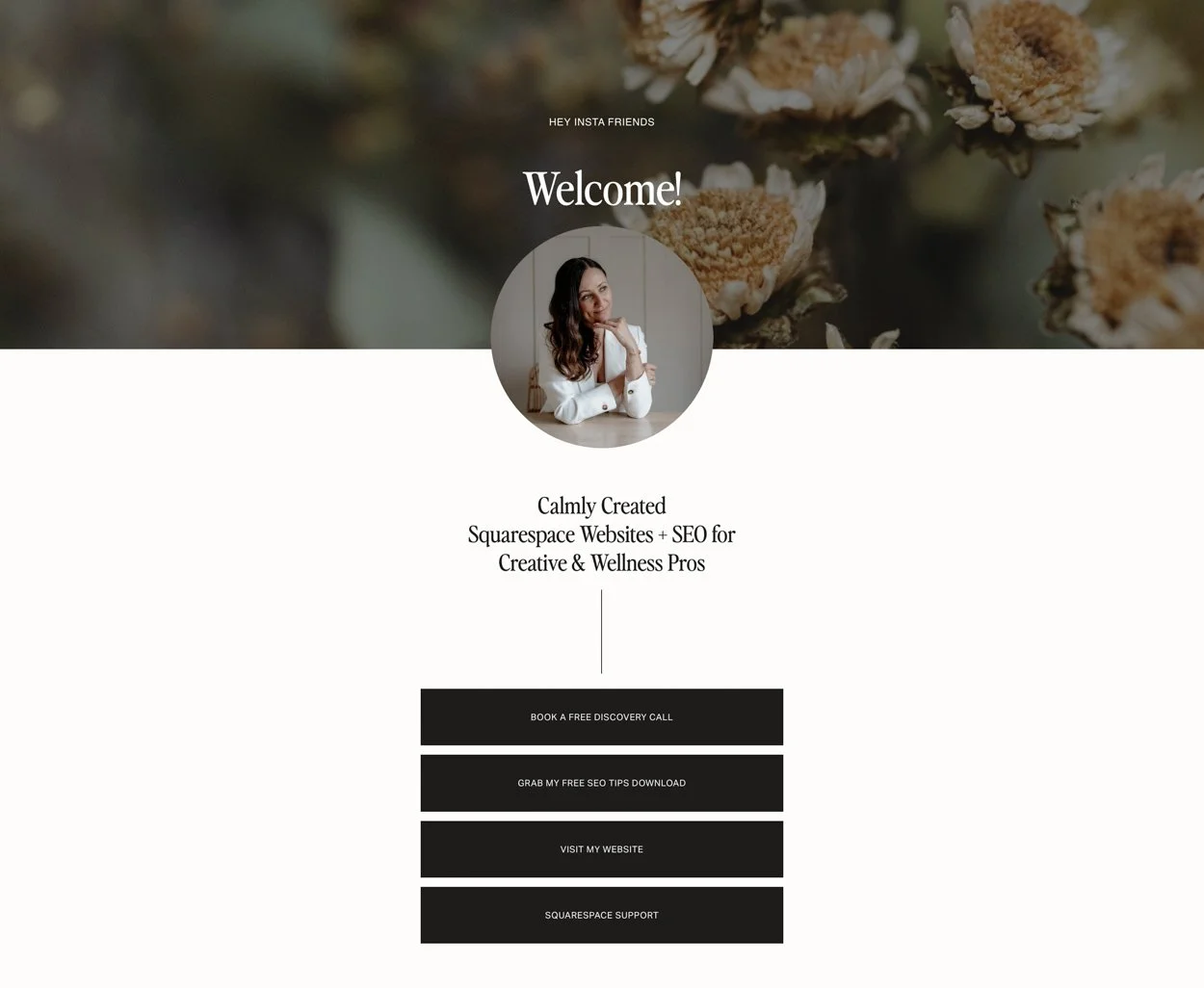
Now it’s time to set up your page so it aligns with your brand and makes it easy for visitors to navigate.
Here’s what to include:
A brand photo (or a logo if you prefer a minimalist look).A short welcome message or introduction to your website.
"Hey! Here’s where you can find all my important links. Click below to explore!"Buttons for your key links. The order of these matters! Here’s what I recommend:
Home page – This should always be first. Give visitors an easy way to explore your site.
Download a freebie – A great way to grow your email list and build trust.
Your most important offers – Services, shop, or blog links based on your goals.
💡 Pro Tip: Keep it mobile-friendly. Most people will visit from Instagram, so regularly check how it looks on your phone and make sure your buttons work and go to the right pages.
Step 3: Remove Header & Footer for a Cleaner Look
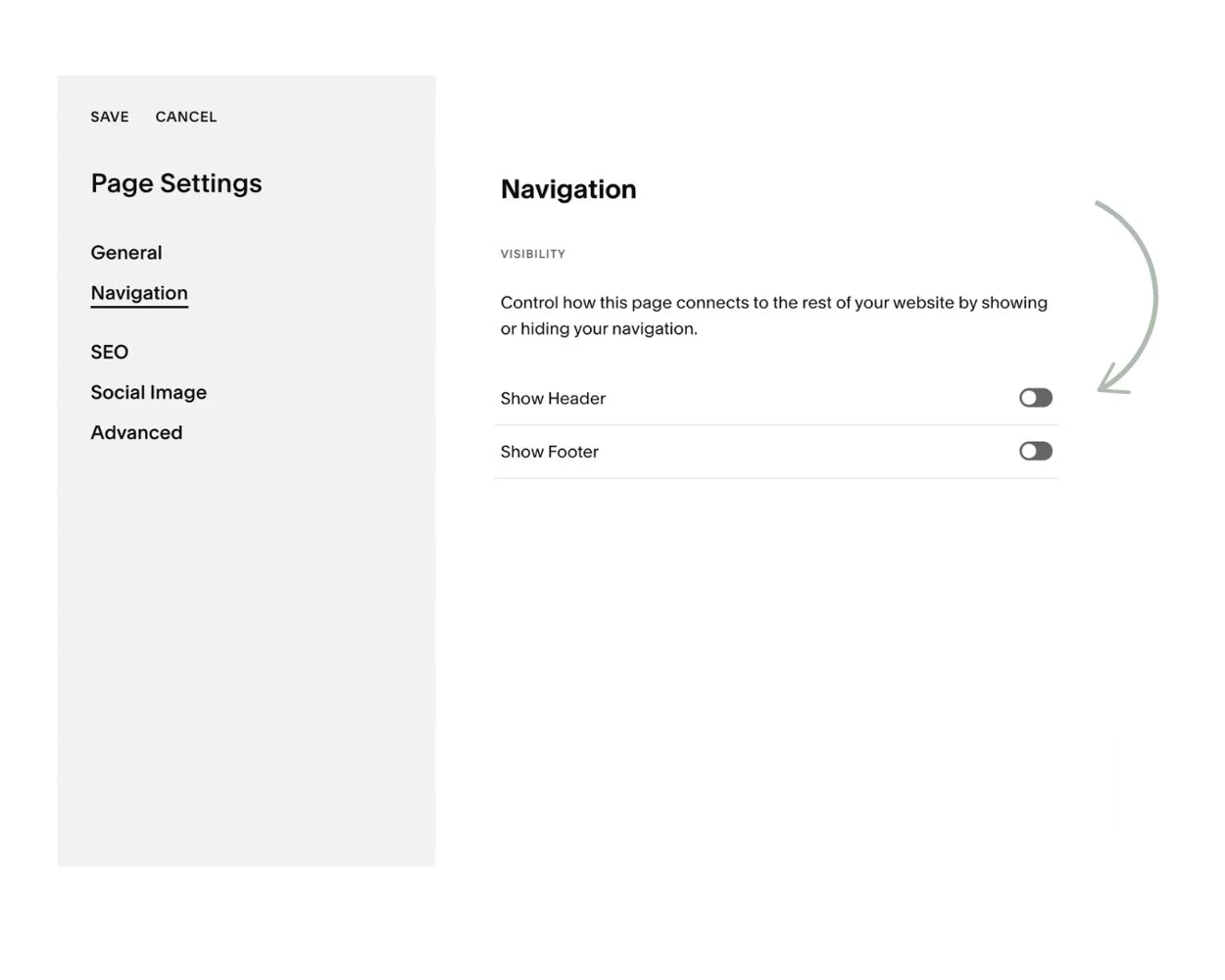
To make your links page feel more like a landing page, you can easily remove the header and footer in Squarespace without any coding.
Here’s how:
Click the ⚙️ (cog icon) next to your page name in Pages.
Go to Navigation.
Toggle off "Show Header & Footer."
This keeps the page distraction-free and focused solely on your links.
Step 4: Add It to Your Instagram Bio
Now that your page is live, replace your Linktree link with your own branded URL:
📌 Go to Instagram → Edit Profile → Links → Paste your new link.
Final Thoughts: Why This is a No-Brainer
Swapping Linktree for a custom Squarespace page isn’t just about aesthetics—it’s about:
Keeping your audience on YOUR site (instead of a third-party platform).
Full control over branding (so your links page looks and feels like you!
Plus, once it’s set up, you can tweak it anytime without being stuck in someone else’s system.
So if you’ve been relying on Linktree, consider this your friendly nudge to make the switch. Your brand will thank you. 😉
Need Help Setting It Up?
If you want a professional touch, I offer Squarespace design services to help you build pages like this (and more!). Head over to my Squarespace Support page and book a Squarespace Design Power if you’d like me to take care of this for you!